



How to Build a Smarter Email System with AI in Zapier – One Step Ahead
Why Combine AI + Automation in Your Email Strategy?
If you’re sending emails to customers or subscribers—this one’s for you.
Instead of racking your brain every week writing, sending, and tracking emails, you can set up a full marketing system that literally runs itself.
I’ve been living and breathing email marketing for over a decade—writing campaigns, building funnels, managing lists, and creating automations that save hours of manual work. I’ve run dozens of campaigns, but one recurring pain point has always been building smart email sequences that respond to user behavior—like opens and clicks. Most email platforms offer limited options, and connecting to third-party tools often feels like a never-ending cycle of testing, tweaking, and maintaining.
Then came the AI revolution—and a whole new world of automation opened up.
Today, there are tons of tools out there to streamline email marketing, but in this post, I want to show you one of the simplest (and most effective): Autoresponders with AI.
Wait… What’s an Autoresponder?
An autoresponder is a sequence of emails sent automatically based on a trigger—like signing up to your list, submitting a form, or making a purchase.
The goal? Build relationships over time, warm up leads, and drive action—without having to hit “send” every single time.
Example:
A new subscriber gets a series of emails—how-to guides, pro tips, a success story, and a relevant offer—spread out over a few days. All on autopilot.
What This Guide Covers:
This is your full, step-by-step walkthrough for building a smart autoresponder system using Zapier, Gmail, and OpenAI.
No code, no stress. Just simple instructions, screenshots, and real examples.
Perfect for non-techies too. Easy to set up, simple to run, and it works 24/7 while you sleep.
Inside the Guide:
-
Hands-on, practical training – Clear steps, visuals, and examples to walk you through the setup.
-
AI-Powered Marketing – Learn how AI can level-up your email strategy, even if you’re not technical.
-
DIY, Zero-Code Build – You’ll have everything you need to launch your own system quickly and easily.
What You’ll Learn:
Audience Targeting – How to define your audience so your emails hit the right people, every time.
✅ Personalized Content – Use AI to generate emails that feel tailor-made, boosting open and click rates.
✅ Smart Funnels – Build automated sequences that adapt based on where your customer is in their journey.
✅ Advanced AI Tools – Discover tools that help you brainstorm subject lines, generate content, and time emails just right.
✅ Track + Optimize – How to measure what’s working, and improve your campaigns continuously.
Who This Is For:
-
Small & medium businesses – Get better results with less time and budget.
-
Marketers – Automate the boring stuff and focus on strategy.
-
Founders & solopreneurs – Build a marketing machine that runs itself.
Don’t wait. Start building your smart email system today—and grow your sales on autopilot.
If you’ve ever written a marketing email, you know it’s a time suck. Writing, sending, tracking, reminding—it drains energy fast. That’s where Zapier + OpenAI change the game:
- AI generates subject lines, content, and ideas
- Gmail sends emails automatically
- Google Sheets tracks opens and responses
- Follow-ups are triggered based on user behavior
And guess what? It’s easier than you think.
The Guide: How to Build a Smart Email Flow with AI & Zapier
Step 1: Trigger Email-Based Automation
-
Go to Zapier → click “Create Zap”
-
Choose Gmail as the trigger
-
Select the event “New Email”
-
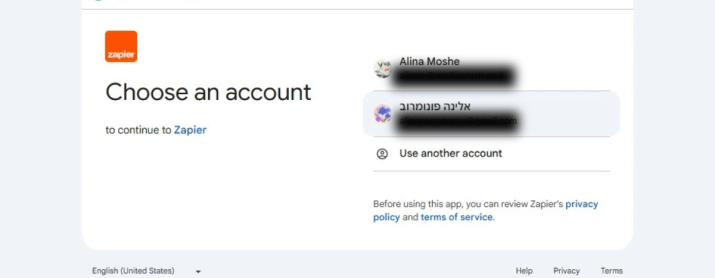
Connect your Gmail account
-
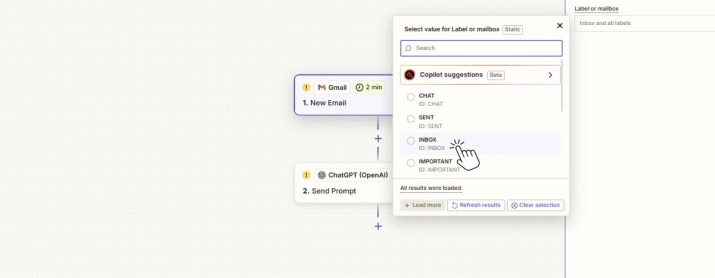
Set the conditions (like a label or inbox)
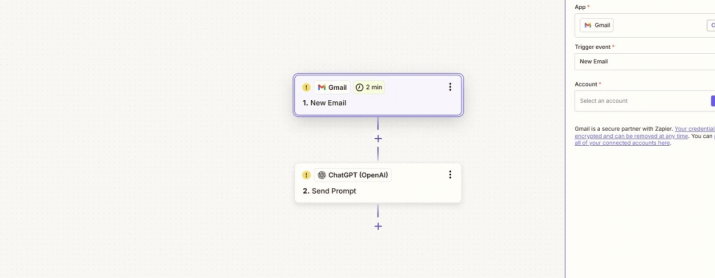
Conect your Gmail account
Defind crertria (like label or Inbox)
Step 2: Add OpenAI to the Flow
-
Add a new action → choose OpenAI
-
Select “Send Prompt”
-
Connect your OpenAI account (if it’s your first time, follow the steps below)
How to connect OpenAI to Zapier (first time):
-
In Zapier, click “Connect a new account”
-
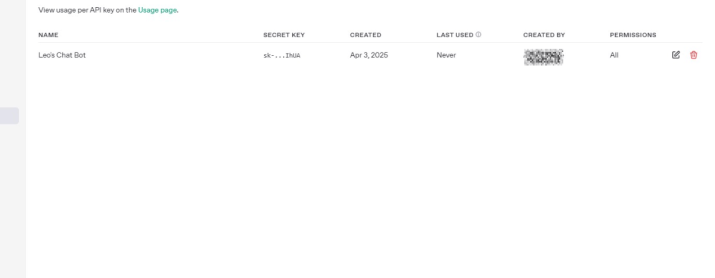
Go to: OpenAI API Keys
-
Click “Create new secret key”
-
Copy your API Key
-
Paste it back into Zapier → Click “Yes, Continue”
You’re all set! Now you can use GPT to write emails, brainstorm ideas, and more.
Step 3: Craft Your AI Prompt
Use the prompt section to guide GPT in generating your email draft.
Here’s a sample prompt you can tweak as needed:
“Write a clear and friendly reply to the following email. Keep it under 200 words and include a helpful suggestion: {{Body of the incoming email}}”
You can personalize the tone, length, or structure based on your brand voice.
Step 4: Send the AI-Generated Email via Gmail
Now that GPT has written the draft:
- Add a new action → Choose Gmail
- Select “Send Email”
- Use the email generated by OpenAI as the body
- Set the recipient (can be dynamic)
- Add subject line (also can be generated via GPT or manually written)
- Customize “From” name, CC/BCC if needed
Boom — your system now reads, writes, and sends responses… all without you lifting a finger.
Step 5: Track Email Opens with Google Sheets
To monitor who opened or interacted with your email:
- Add a new action → Choose Google Sheets
- Select “Create Spreadsheet Row”
- Choose the sheet you want to use for tracking
- Map the fields: recipient email, date sent, subject, GPT version used, etc.
This gives you a living log of your email performance that you can filter, review, and use to improve future campaigns.
Step 6: Send Follow-Ups Based on Behavior
Here’s where things get smart.
You can use Zapier’s filters or paths to send follow-ups only when:
- An email was opened
- A link was clicked
- A reply was received
- Or… nothing happened at all (no interaction)
You can have Zapier wait 48 hours, then trigger another GPT prompt to generate a new message, tailored to the behavior—or lack of it.
And That’s It
With just a few Zaps and some GPT prompts, you’ve built:
- A responsive email system
- Smart, behavior-based follow-ups
- Personalized content on autopilot
- A feedback loop for learning and optimization
And the best part? It’s running while you sleep.